I will show you how to install the ESPN+ addon on Kodi. The steps I have provided apply to all Kodi-compatible devices. I have tested them on FireStick, Mac, Windows, iPhone, iPad, and tablets.
What is the ESPN+ Kodi Addon?
ESPN+ is one of the most popular sports streaming services. It is loved for its vast library of live and on-demand sports, including exclusive matches, sports documentaries, archives, highlights, and replays.
The platform features a wide range of sporting events, including the UFC and college sports, as well as international soccer leagues such as the Bundesliga, LaLiga, and the Copa Del Rey.
While most people prefer to watch ESPN+ through the official ESPN app or website, you can still access it on Kodi. This is made possible by the ESPN+ sports addon.
You can access most of the sports content on the ESPN+ platform via this addon, including live games, talk shows, special events, and PPVs.
You need an ESPN+ subscription or a TV provider to use this sports addon.
Is the ESPN+ Addon Safe and Legal?
The ESPN+ addon provides sports content legally by requiring users to log in with their ESPN+ credentials. However, because it is a third-party addon hosted in the SlyGuy Repository by Matt Huisman, some users may have concerns about its safety and legality.
To address these concerns, I scanned the SlyGuy Repository zip file with VirusTotal and Norton Safe Web to detect suspicious files.
Below are the scan results:
VirusTotal- No Red Flags

The ESPN+ Kodi addon is legitimate because it only works with an existing ESPN+ subscription or TV provider account. This means you’re accessing the same licensed content you would get through the official ESPN app or website.
How to Install ESPN+ Addon on Kodi
I have divided the steps into three parts.
Part 1: Enable Unknown Sources
Follow these steps to enable unknown sources on Kodi:
1. Open Kodi and click Settings.

2. Navigate to System.

3. Select Addons, then scroll to Unknown Sources. Turn ON the toggle.

4. Choose Yes when a warning appears on the screen.

5. You have successfully enabled Unknown Sources on Kodi.

Part 2: Install the Repository with ESPN+ Addon
The next step is to install the SlyGuy Repository, which hosts the ESPN+ addon. Follow these steps:
1. Return to the Settings window and select File Manager.
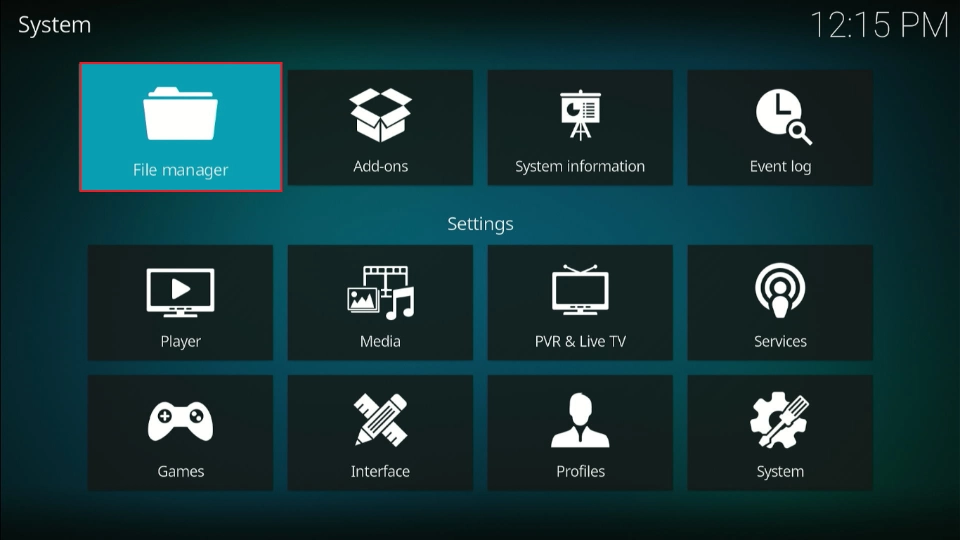
2. Navigate to Add Source and click on it.

3. Click None.

4. Enter the following URL: https://k.slyguy.xyz, and click OK.
Attention Kodi Users!
Governments and ISPs worldwide monitor your online activities. If you use third-party Kodi addons, you should always use a reliable Kodi VPN to hide your identity and prevent issues with your streaming experience. Currently, your IP is visible to everyone.
I use ExpressVPN, the fastest and most secure VPN in the industry. It is very easy to install on any device, including Amazon Fire TV Stick, PC, Mac, and Smartphones. It also includes a 30-day money-back guarantee. If you're not satisfied with their service, you can request a refund. ExpressVPN is offering a special NEW YEAR deal: get 4 months free and save 78% on the 2-year plan.
Install and Use Best Kodi VPN | Why you must use a VPN at all times

5. The next step is giving your new source a name. Click on the provided field.

6. Type your chosen name and click OK. I have chosen SlyGuy in my case.

7. Select OK to confirm the entered details and close this window.

8. The new source will be added.

9. Return to the Settings window and select the Addons folder.
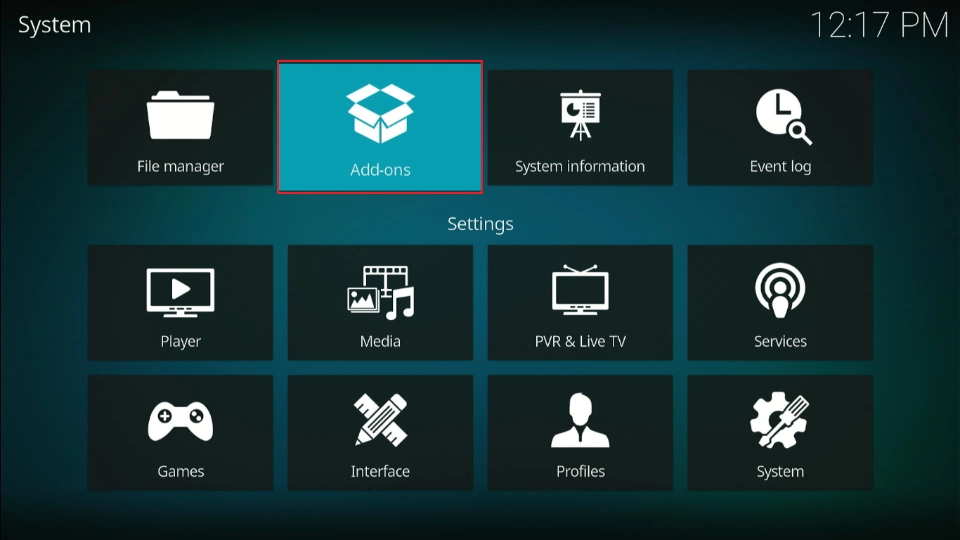
10. Select Install from zip file.

11. Click Slyguy, or the name you gave your new source.

12. Select repository.slyguy.zip.

13. The SlyGuy Repository will start downloading. Wait for the installation process to complete. You should see a SlyGuy Repository Addon Installed notification in the top-right corner of the screen.

That’s it. You have installed the repository that hosts the ESPN+ Kodi addon. Let’s proceed to install the addon in the next part.
Part 3: Install ESPN+ Kodi Addon
Below are the steps to install the ESPN+ addon on Kodi:
1. Click Install from repository.

2. Select SlyGuy Repository.

3. Choose Video Addons.

4. Select ESPN.

5. Click Install.

6. Select OK when prompted to install additional addons alongside ESPN.

7. The installation process begins, and you can see the progress in percentage on the screen.
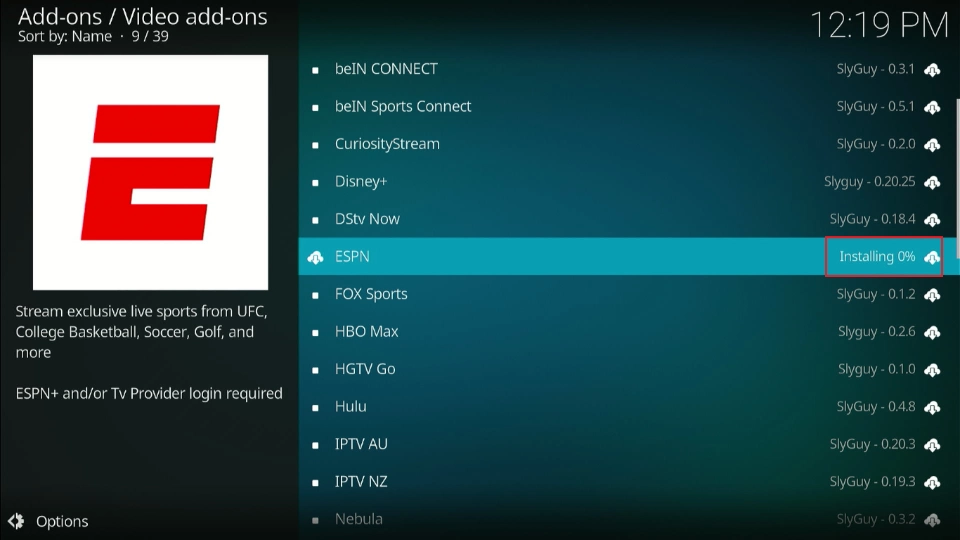
8. Once the installation is complete, you’ll see an ESPN Addon Installed notification in the top right corner of the screen.

Congratulations. You have successfully installed the ESPN+ addon on Kodi.
How to Use the ESPN+ Kodi Addon
ESPN+ is one of the best Kodi sports addons. To launch the addon, return to the Kodi home screen and navigate to Addons in the left-hand menu.
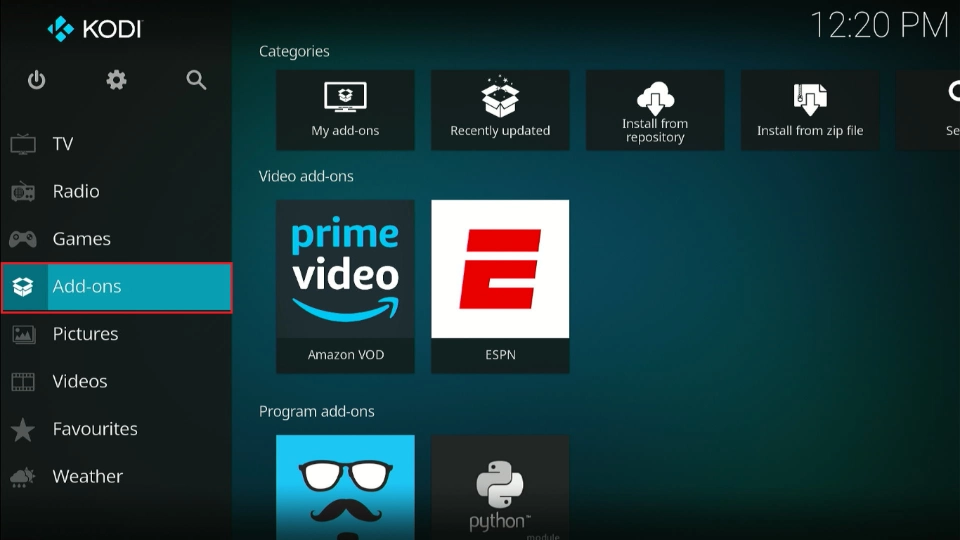
Click on the ESPN addon tile to launch it.

This is what the ESPN+ addon home screen looks like.

Click Login to sign in to your ESPN account.

The ESPN addon lets you sign in using either your TV provider details or your ESPN subscription account. If ESPN is included under your TV provider, select TV Provider Login.

Follow the on-screen instructions to complete the login process.

To log in with your ESPN subscription, click ESPN Account Login.

Follow the on-screen steps to sign in using your ESPN+ account credentials.

After logging in, you can start exploring the ESPN content library. The main menu sections include Live, Upcoming, Bookmarks, Account, and Settings.
The Settings menu allows you to customize your streaming experience, including network, interface, player, and add-on settings.

That’s how you set up and use the ESPN (ESPN+) addon on Kodi.
Winding Up
This post explained how to install the ESPN+ Kodi addon. It’s one of the best sports Kodi addons, allowing you to watch live sports, PPV events, and on-demand sports content. Have you installed the addon on Kodi? Share your experience in the comments section below.
Remember, this addon doesn’t provide free content; you’ll need an active ESPN+ subscription or a TV provider login to stream.

Suberboost Your FireStick with My Free Guide
Stay Ahead: Weekly Insights on the Latest in Free Streaming!
No spam, ever. Unsubscribe anytime.


Leave a Reply